How to Use IPTV – Easy Step-by-Step Installation Guide 2026 | NextgenIPTV
Introduction
One of the most widely used methods for watching live TV channels, movies, sports, and on-demand content online is Internet Protocol Television (IPTV). IPTV enables users to stream content directly on a variety of devices, including computers, smartphones, tablets, Smart TVs, and streaming devices, in contrast to traditional cable or satellite services. How to Use IPTV.
If you are new to IPTV, the setup process may seem confusing at first. However, getting started is usually quick and straightforward once you understand the basics. This detailed installation guide explains how to set up IPTV on different devices, how to use IPTV, and what you’ll need before you start.
What Is IPTV?
IPTV stands for Internet Protocol Television. Instead of receiving television signals through cable or satellite connections, IPTV delivers content through an internet connection.
With IPTV, users can access:
- Live TV channels
- Sports broadcasts
- Movies
- TV series
- Catch-up TV
- Video-on-demand (VOD) content
The flexibility and convenience of IPTV have made it a popular choice for viewers around the world.
What You Need Before Installing IPTV
Before you set up IPTV, ensure that you have the following:
Stable Internet Connection
For seamless streaming, a reliable internet connection is necessary.
Recommended speeds:
- 10 Mbps for HD content
- 25 Mbps or higher for Full HD
- 50 Mbps or higher for 4K streaming
IPTV Subscription
You’ll need an active IPTV subscription from your provider. Most providers provide at least one of the following:
- M3U Playlist URL
- Xtream Codes Login
- Portal URL
- Username and Password
Compatible Device
IPTV can be installed on:
- Smart TVs
- Amazon Firestick
- Android TV Boxes
- Android smartphones
- iPhones and iPads
- Windows PCs
- Mac computers
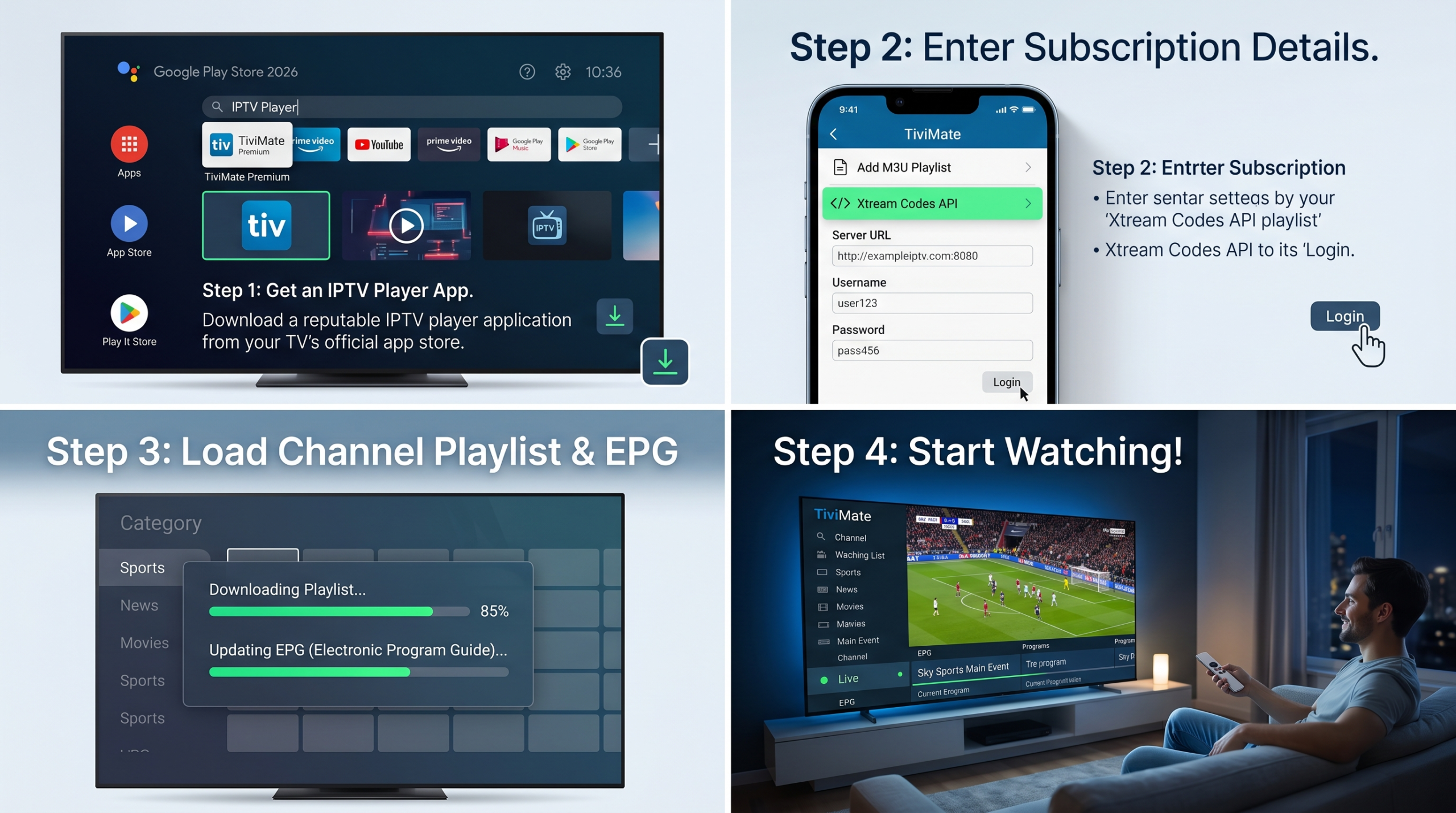
How to Install IPTV on a Smart TV (How to Use IPTV)
Step 1: Download an IPTV Player
Install a compatible IPTV player by opening the app store on your Smart TV.
Popular IPTV applications include:
- IPTV Smarters Pro
- TiviMate
- Smart IPTV
- IBO Player
- Flix IPTV
Step 2: Launch the Application
Open the IPTV application after installation.
Step 3: Enter Your IPTV Details
Choose one of the available login methods.
Option 1: Xtream Codes API
Enter:
- Username
- Password
- Server URL
Option 2: M3U Playlist
Copy and paste the M3U URL that your IPTV service provider sent you.
Step 4: Save and Load Channels
After entering your details, click “Add User” or “Login.”
The available channels and content will be loaded automatically by the application.
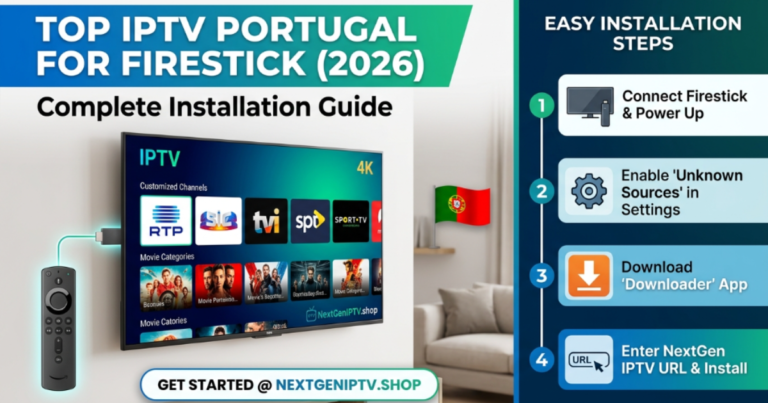
How to Install IPTV on Amazon Firestick
The Amazon Fire Stick is one of the most popular IPTV streaming devices.
Step 1: Install the Downloader App
Open the Amazon Appstore and install the Downloader application.
Step 2: Enable Unknown Sources
Navigate to:
Settings → My Fire TV → Developer Options
Enable:
- Apps from Unknown Sources
Step 3: Download an IPTV Application
Using Downloader, enter the IPTV player’s download URL and install the application.
Step 4: Log In with IPTV Credentials
Open the IPTV app and enter your:
- Username
- Password
- Server URL
or
- M3U Playlist URL
Step 5: Start Watching
Once the playlist loads, you can begin streaming channels immediately.
How to Install IPTV on Android Devices
Step 1: Download an IPTV Player
Install one of the following by going to the Google Play Store:
- IPTV Smarters Pro
- TiviMate
- XCIPTV
- IBO Player
Step 2: Open the application.
Launch the IPTV application.
Step 3: Add Your IPTV Subscription
Enter your subscription information and select your preferred login method.
Step 4: Load Content
After successful login, channels, movies, and TV series will appear automatically.
How to Install IPTV on iPhone and iPad
Step 1: Install an IPTV App
Download an IPTV-compatible application from the Apple App Store.
Popular options include:
- IPTV Smarters
- GSE Smart IPTV
- IPTVX
Step 2: Enter Subscription Information
Add the M3U playlist or Xtream Codes credentials.
Step 3: Save and Sync
Allow the application to load channels and video libraries.
IPTV content is now accessible straight from your iOS device.
How to Install IPTV on Windows and Mac
Step 1: Download VLC Media Player
Many IPTV playlists work perfectly with VLC Media Player.
Step 2: Open Network Stream
Navigate to:
Media → Open Network Stream
Step 3: Paste the M3U URL
Paste your IPTV playlist URL into the network stream field.
Step 4: Click Play
VLC will begin loading available channels.
Alternatively, dedicated IPTV software can provide a more advanced viewing experience.
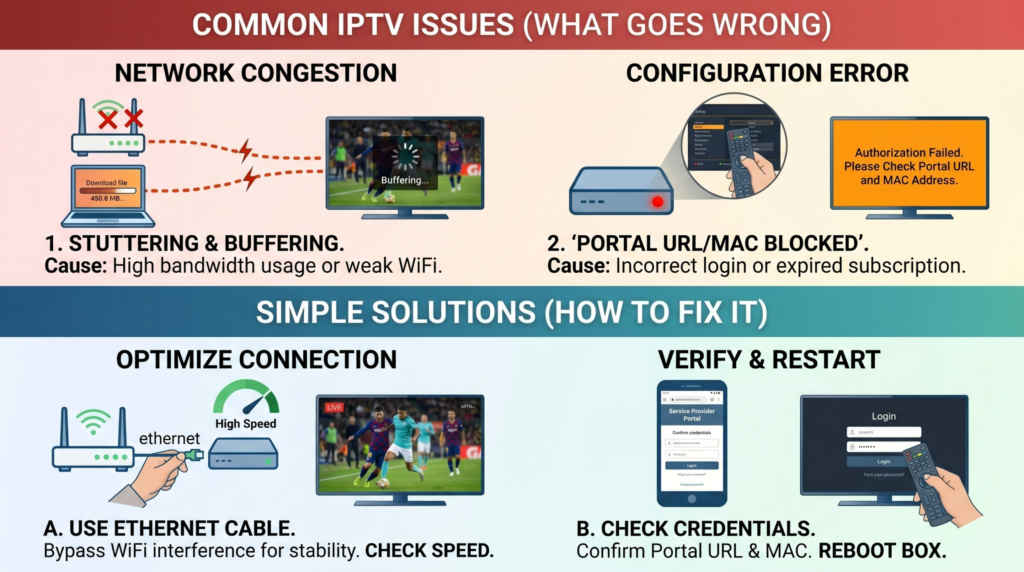
Common IPTV Setup Issues and Solutions
Buffering Problems
Possible causes include:
- Slow internet connection
- Network congestion
- Weak Wi-Fi signal
Solutions:
- Restart your router
- Use an Ethernet connection
- Upgrade your internet speed
Login Errors
Check:
- Username
- Password
- Server URL
Make sure all details are entered exactly as provided.
Channels Not Loading
Try:
- Refreshing the playlist
- Restarting the application
- Updating the IPTV player
App Crashes
Make sure the IPTV application is up to date.
Tips for the Best IPTV Experience
To enjoy smooth streaming:
Use high-speed internet.
Faster connections reduce buffering and improve picture quality.
Keep Apps Updated
Regular updates improve compatibility, performance, and security.
Use Ethernet When Possible
A wired connection is typically more dependable than a wireless one.
Choose a Reliable IPTV Provider
Service quality can significantly impact your viewing experience.
Benefits of Using IPTV
If you’re wondering how to use IPTV, it’s important to understand that IPTV offers several advantages over traditional television services, including flexibility, convenience, and access to a wider range of content.
- Access to live TV and on-demand content
- Multi-device compatibility
- Flexible viewing options
- Extensive content libraries
- Easy installation process
- Cost-effective entertainment solutions
These benefits have contributed to IPTV’s growing popularity among modern viewers.
Conclusion
Learning how to use IPTV is easier than many people expect. You can begin streaming live TV, movies, sports, and on-demand content in a matter of minutes if you have the proper IPTV subscription, a compatible device, and a reliable internet connection.
By following this step-by-step installation guide, users can quickly configure IPTV on Smart TVs, Firestick devices, smartphones, tablets, and computers. Once installed, IPTV provides a convenient and flexible way to enjoy entertainment whenever and wherever you choose.